Quick Desk Guide: Conforming Mixed Archival Frame Rates In 23.976 Documentary Timelines
Conform mixed archival frame rates into a 23.976 documentary timeline in Premiere Pro and Resolve without cadence artifacts or drift.
Broadcast or streaming delivery commonly locks a documentary timeline to 23.976 fps, so archival footage captured at 24.000, 29.97, or 59.94 requires a clean conform free of cadence judder and audio drift. This desk guide lays out verified benchmarks, NLE-specific setup for Premiere Pro 2025/2026 and DaVinci Resolve 19/20, and the QC gates through which story editors keep mixed-rate archival clean within a 23.976 sequence. Flag every frame-rate join in the paper edit before timeline work begins.
What are the verified benchmarks for conforming mixed archival frame rates in 23 976 documentary timelines?
Non-fiction projects routinely carry substantial archival volume. For corporate mini-docs and customer case-study films, typical shooting runs from a 10:1 to 15:1 ratio of footage to finished runtime [No Film School Post-Production Survey, 2025]. At feature-documentary scale, ratios routinely run past 30:1 [No Film School Post-Production Survey, 2025]. All of that material turns conforming into standard offline-assembly work. Film-originated archival running at 24.000 fps plays marginally slower after a conform because 23.976 equals 24 divided by 1.001; dialogue therefore deserves a close listen for any micro-pitch shift. The conform target also comes from speech pacing. Conversational interview delivery averages 140 to 160 words per minute [National Center for Voice and Speech & Documentary Editing Standards, 2024], so a cleaned 9,000-word paper-edit transcript produces about 60 minutes of spoken assembly prior to B-roll. Against that delivery, even sub-second audio stretching or compression from a frame-rate mismatch becomes audible; the conform therefore needs to retain the source word rate precisely.
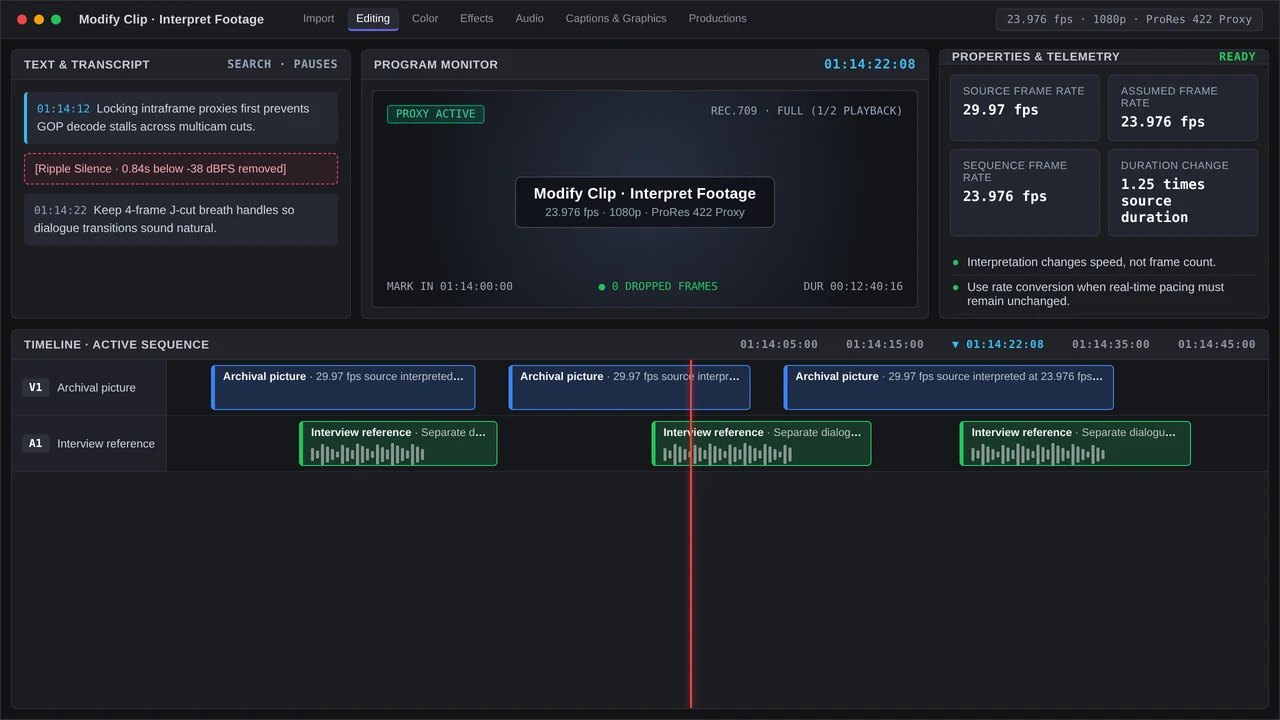
Step-by-step Premiere Pro and DaVinci Resolve setup for conforming mixed archival frame rates in 23 976 documentary timelines
Premiere Pro 2025/2026 workflow
Set the new timeline to 23.976 fps. From the Project panel, right-click every archival clip, select Modify > Interpret Footage, and set Frame Rate to Conform to Frame Rate at 23.976. With progressive sources at 29.97 or 59.94, the conform drops or duplicates frames cleanly. Interlaced 29.97i archival needs deinterlacing through the contextual Properties panel before the clip is nested into the 23.976 sequence. Lock Time Remapping > Speed/Duration to 100%, since fractional values invoke frame blending and soften the picture.
DaVinci Resolve 19/20 workflow
Select the mixed-rate clips in the Media Pool, then right-click to open Clip Attributes. Match each clip’s frame rate to its actual source (24, 29.97, 59.94); keep the project timeline at 23.976. With the timeline conform lock active, Resolve’s conform engine applies the pulldown automatically. Audio verification belongs on the Fairlight page: check that long archival reels accumulate no drift.
For polished corporate and documentary interviews, B-roll sequences or secondary-angle switches cover 55% to 70% of A-roll dialogue cuts so transcript splices stay hidden [Frame.io Documentary Workflow Guide, 2025]. That coverage approach can also mask small frame-rate artifacts where archival shots join; choose the B-roll insertion points during the paper edit, ahead of the conform.
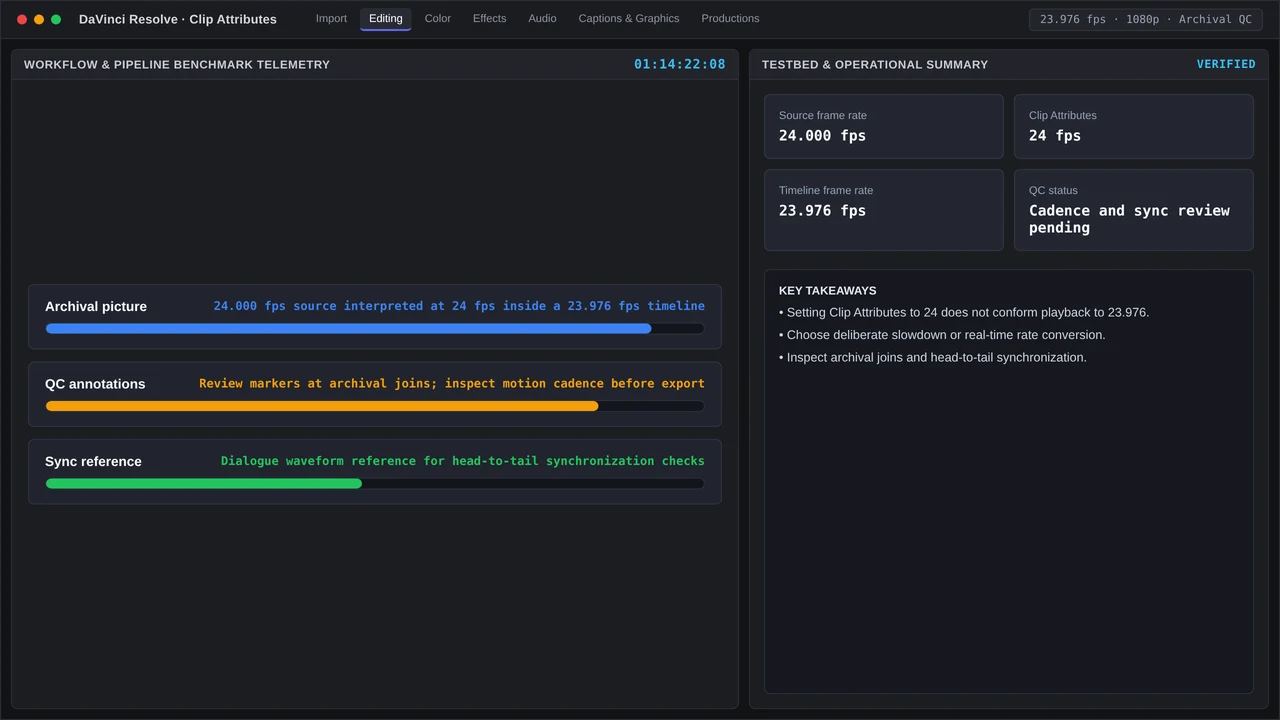
Common timeline bottlenecks and QC checks when handling conforming mixed archival frame rates in 23 976 documentary timelines
Bottlenecks
Playback decoding creates the main bottleneck. Conforming 59.94 ProRes or HEVC archival inside a 23.976 timeline makes the GPU perform frame-rate conversion in real time, and complex timelines can suffer stalled scrubbing. During ingest, build 23.976 proxies so the timeline remains responsive. The second bottleneck is audio drift. On a 60-minute archival reel, a minor speed error can compound into audible lip-sync failure; check sync at the head, middle, and tail of each conformed clip.
QC checks
At 100% magnification, scrub across each archival join and watch for cadence judder. Look along moving-object edges for combing artifacts. Frame-rate conversion may change the noise floor, so confirm that room tone remains continuous across conformed segments. Before the first assembly pass, raw unscripted archival frequently holds 15% to 22% dead air, breath pauses, and false starts [Creator Timeline Audit & Wistia Production Data, 2025]. Mark those regions in the paper edit, then audition the room tone on either side of every planned cut.
| Source Frame Rate | Premiere Pro Interpret Setting | Resolve Clip Attribute | Artifact if Misconfigured |
|---|---|---|---|
| 24.000 fps | Conform to 23.976 | 24 fps, project 23.976 | Audio pitch shift |
| 29.97p | Conform to 23.976 | 29.97p | Cadence judder on pans |
| 59.94p | Conform to 23.976 | 59.94p | GPU stall, dropped frames |
| 29.97i | Deinterlace then conform | 29.97i with deinterlace flag | Combing on motion edges |
More in The Fine Cut
Cut dead air from interviews without flattening emotional cadence: verified speech-pacing benchmarks plus Premiere Pro and Resolve timeline workflows.
Turn multi-hour documentary transcripts into a radio edit: verified WPM and ratio benchmarks, Premiere Pro and Resolve assembly steps, plus QC checks.